GB WhatsApp Auto Reply: Save Time and Stay Connected
Learn how to use GB WhatsApp Auto Reply to send instant messages, save time, and manage chats even when you’re away or busy.
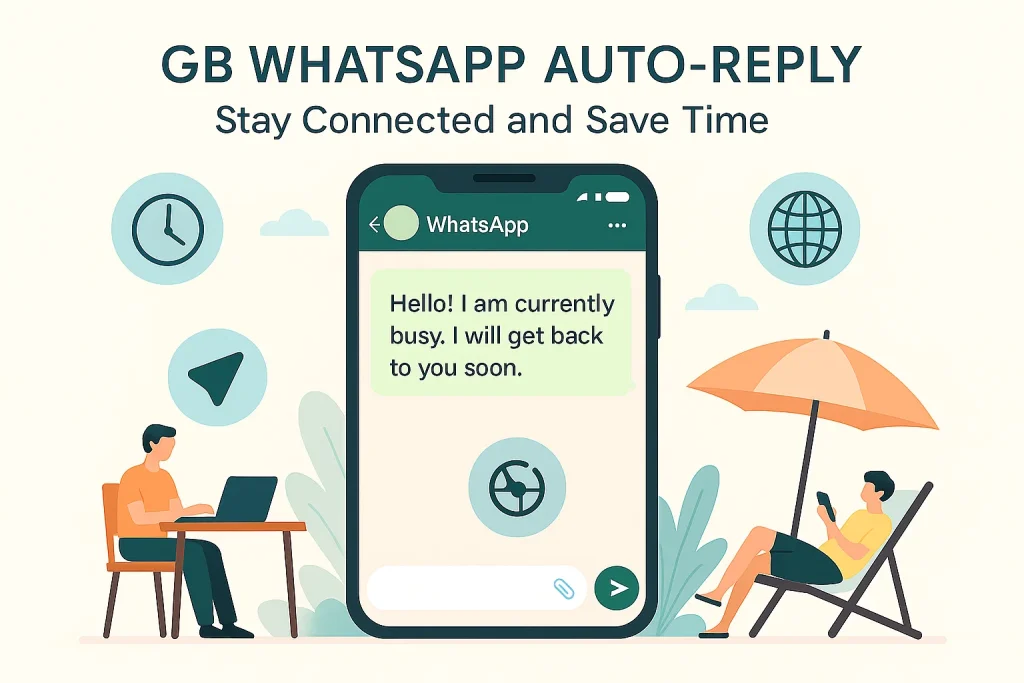
Looking for a way to stay connected while managing your WhatsApp messages effortlessly? With GB WhatsApp’s Auto Reply feature, you can set automatic responses and never miss a message again. Whether you’re away on vacation, in a meeting, or simply want to save time, this feature is designed to keep your WhatsApp interactions smooth and efficient.
We understand how frustrating it can be to juggle multiple chats and notifications, especially when you’re busy. That’s why GB WhatsApp’s Auto Reply feature is a game-changer. It helps you manage your communication without compromising your time or privacy. The ability to personalize your responses adds a unique touch, ensuring that your replies are professional and tailored to your needs.
What makes this feature stand out is its flexibility and ease of use among all other features. You can set customized auto-replies for specific contacts or groups, making it perfect for both personal and business use. By using this tool, you gain control over your messaging while ensuring prompt responses. Plus, with clear, actionable steps to set it up, you’ll be able to get started right away and experience the convenience for yourself.
What is GB WhatsApp Auto Reply?
GB WhatsApp Pro latest version’s auto reply is a feature that allows you to set automated responses to incoming messages when you’re unavailable or busy. It’s especially useful for those who want to maintain prompt communication without manually replying every time. With this feature, you can customize messages for individual contacts, groups, or specific situations. Whether you’re on vacation or in a meeting, GB WhatsApp ensures your contacts receive a response instantly. It’s an efficient tool to save time and stay connected while managing your day.
Why Us Auto Reply?
- Auto Reply ensures that you never miss a message, even when you’re busy or unavailable.
- It saves you time by automating replies, so you don’t need to manually respond to every message.
- Customizing your messages lets you keep communication personal while still being efficient.
- Ideal for businesses, allowing you to maintain customer engagement even when you’re not online.
- It helps manage expectations, letting contacts know when they can expect a response, making your communication more professional.
How to Set Up Auto-Reply in GB WhatsApp
- Open GB WhatsApp and go to “Settings” from the menu.
- Select “Auto Reply” under the “Chats” section.
- Turn on the “Enable Auto Reply” toggle.
- Enter your custom message that will be sent automatically to contacts.
- Choose whether you want the auto-reply for all contacts or specific ones.
- Set the time range if you want the auto-reply to activate only during certain hours.
- Save your settings, and you’re all set to use Auto Reply in GB WhatsApp!
Also Check:
Customizing Your Auto Reply Messages
- Tailor your Auto Reply message for different contacts or groups based on the situation.
- Set a casual message for friends and a more formal response for professional contacts.
- Include details like your availability or expected response time in the message.
- Add alternative ways to reach you in case of urgent matters.
- Ensure your message aligns with the tone of the conversation, making it feel personal and relevant.
- Use clear and direct language to avoid confusion and keep communication effective.
- Customizing your Auto Reply ensures professionalism, even when you’re unavailable.
Best Practices for Auto Replies
- Keep Auto Reply messages clear and concise to avoid overwhelming the reader.
- Include essential details like your availability or when to expect a response.
- Use a friendly yet professional tone, especially for business-related auto replies.
- Personalize messages for different contacts or groups to match the context (formal for clients, casual for friends).
- Regularly update your Auto Replies to ensure they reflect your current availability or any new information.
- Test your auto-reply settings to make sure they work correctly before relying on them fully.
- Avoid overusing Auto Reply for long-term periods to prevent it from feeling impersonal.
Smart Reply Templates You Can Use
- “Hey, I’m currently unavailable but will get back to you as soon as I can. Thanks for your patience!”
- “Thanks for your message! I’m away right now, but I’ll respond within [timeframe]. Please be patient.”
- “Hi! I’m currently in a meeting and will reply shortly. If it’s urgent, please contact [alternative contact].”
- “I’m on vacation and will have limited access to messages. I’ll reply when I return.”
- “Thanks for reaching out! I’m not available right now but I’ll get back to you as soon as possible.”
- “I’m currently out of the office. I’ll respond to your message as soon as I can, or feel free to email me at [email].”
- “Hello! I’m away from WhatsApp right now. If this is urgent, please email me at [email]. I’ll respond soon!”
Conclusion
In this blog, we’ve explored the Auto Reply feature in GB WhatsApp, highlighting its importance for saving time and managing communication effectively. We’ve walked through the steps on how to set it up, tips for customizing your messages, and best practices to ensure your auto replies remain professional and helpful. Whether you’re using it for personal or business use, this feature makes staying connected easier.
While Auto Reply can be incredibly useful, it’s important to regularly update your messages and use them thoughtfully. Overusing auto replies for extended periods can make communication feel impersonal, so balance is key. Additionally, be mindful of privacy and the tone of your messages to ensure your replies suit the context.
If you have any questions or need further clarification, feel free to leave a comment below or share your thoughts with us. We’d love to hear how you use Auto Reply and any tips you might have! Don’t hesitate to reach out to our support team for assistance— we’re here to help!